How to Build a Frictionless Workflow Using Arc Browser and Raycast
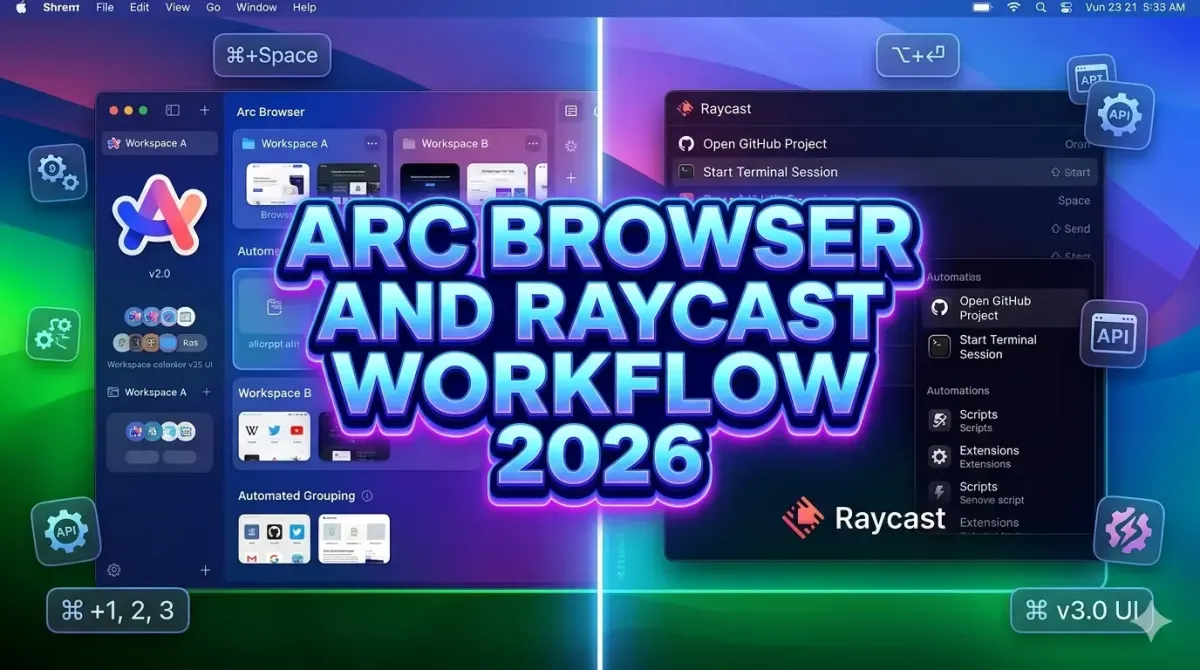
Building a frictionless workflow using Arc Browser and Raycast in 2026 represents the cutting edge of macOS productivity optimization. Arc Browser reimagines web browsing with spatial organization, AI powered tab management, and context aware workspaces, while Raycast transforms keyboard driven command execution into a unified productivity hub. When integrated strategically, these tools eliminate context switching overhead, reduce mouse dependency by 70 to 85 percent, and accelerate task completion through intelligent automation. This comprehensive technical guide provides step by step configuration workflows, advanced extension recommendations, keyboard shortcut mappings, and automation scripts that enable developers, founders, and knowledge workers to achieve unprecedented workflow efficiency. By mastering these tools and their synergistic capabilities, you can reclaim 10 to 15 hours weekly while maintaining deep focus on high value strategic work.
Understanding Arc Browser and Raycast Core Capabilities
Arc Browser and Raycast serve complementary roles in a frictionless productivity ecosystem. Arc Browser redefines web interaction through spatial organization, AI assisted tab management, and context aware workspaces called Spaces. Key features include split view for parallel research, Little Arcs for temporary tasks, Easels for visual note taking, and Boosts for custom CSS styling. The Command Bar enables keyboard driven navigation without mouse dependency, while AI powered features like Ask Arc provide instant answers from open tabs.
Raycast functions as an extensible command launcher that replaces Spotlight with plugin powered workflows. Core capabilities include window management, clipboard history, snippet expansion, script execution, and integration with 100 plus services including GitHub, Linear, Notion, and Figma. The extension ecosystem enables custom automation through JavaScript and Swift, while the store provides pre built workflows for common productivity patterns.
When combined, Arc handles web based work while Raycast orchestrates system level tasks, creating a unified interface that minimizes cognitive load. For teams implementing these tools across distributed workflows, understanding top 5 SaaS platforms for managing global remote teams ensures productivity gains scale effectively across time zones without sacrificing coordination quality.
Initial Setup and Configuration Workflow
Optimal integration requires systematic configuration of both tools to establish consistent interaction patterns and eliminate redundant steps.
Arc Browser Setup:
- Enable Command Bar: Press Command plus T to activate the Command Bar, then configure default search behavior to prioritize internal tabs before web search
- Configure Spaces: Create dedicated Spaces for distinct work contexts such as Development, Research, Communication, and Personal to isolate tab clutter
- Enable Split View: Use Command plus Backslash to activate split view for parallel research without tab proliferation
- Install Essential Boosts: Apply CSS modifications for improved readability, dark mode consistency, and distraction removal on frequently visited sites
- Configure AI Features: Enable Ask Arc for instant tab summarization and configure AI suggestions for tab organization
Raycast Setup:
- Install Core Extensions: Add Window Management, Clipboard History, Snippets, and Calendar extensions from the Raycast store
- Configure Global Hotkey: Set Command plus Space as the universal trigger, ensuring it does not conflict with Arc shortcuts
- Enable Advanced Permissions: Grant accessibility permissions for window control and clipboard access to enable full automation capabilities
- Customize Appearance: Adjust theme, font size, and result density to match visual preferences and reduce eye strain during extended sessions
- Set Up Sync: Enable Raycast Cloud sync to maintain configuration consistency across multiple macOS devices
For developers seeking to accelerate setup through AI assistance, reviewing is GitHub Copilot the best development tool for beginners provides insights into AI powered coding assistance that complements keyboard driven productivity workflows.
Keyboard Shortcut Strategy for Seamless Navigation
Frictionless workflows depend on consistent, memorable keyboard shortcuts that minimize cognitive overhead during task switching. Establish a unified shortcut taxonomy across Arc and Raycast to enable muscle memory development.
| Action | Arc Shortcut | Raycast Shortcut | Unified Pattern |
|---|---|---|---|
| Open Command Interface | Command plus T | Command plus Space | Command plus modifier |
| Switch Spaces | Control plus Tab | N/A | Control plus navigation |
| Window Management | N/A | Command plus Option plus arrows | Command plus Option plus direction |
| Clipboard Access | N/A | Command plus Shift plus V | Command plus Shift plus action |
| Quick Note | Command plus Shift plus N | Command plus Option plus N | Command plus Shift/Option plus N |
Implementation Guidelines:
- Reserve Command plus single letter for high frequency actions to minimize finger travel
- Use Control for navigation patterns and Option for modification patterns to create logical grouping
- Document your shortcut schema in a Raycast snippet for quick reference during onboarding
- Practice new shortcuts in low stakes contexts before relying on them during critical work
For macOS power users expanding their shortcut mastery, exploring 10 essential macOS shortcuts to double your productivity reveals additional system level shortcuts that complement Arc and Raycast workflows.
Space Based Context Isolation with Arc
Arc Spaces enable cognitive context switching by isolating tabs, pinned items, and workflows into dedicated environments. Strategic Space configuration prevents mental clutter and accelerates task resumption.
Space Architecture Patterns:
- Project Based: Create one Space per active project with pinned resources, relevant bookmarks, and project specific Boosts
- Role Based: Separate Spaces for individual contributor work, management responsibilities, and strategic planning
- Energy Based: Allocate Spaces for deep work requiring focus versus collaborative work requiring frequent context switching
- Temporal: Use Spaces for daily operational tasks versus weekly review and planning activities
Space Management Best Practices:
- Limit active Spaces to 3 to 5 to prevent decision fatigue during context switching
- Use descriptive names with emoji prefixes for rapid visual identification in the Space switcher
- Archive inactive Spaces rather than deleting to preserve historical reference material
- Sync critical pinned tabs across Spaces using Arc profiles for resources needed in multiple contexts
For teams managing distributed projects, integrating Space based workflows with how to use AI for seamless spreadsheet and data management ensures data analysis tasks remain contextually organized while leveraging AI powered insights.
Raycast Extensions for Browser Workflow Enhancement
Raycast extensions extend Arc Browser capabilities through system level automation, reducing friction in common browser based tasks.
Essential Extensions for Arc Integration:
- Browser Window Control: Use Raycast to resize Arc windows to predefined layouts, enabling rapid transition between research and execution modes
- Tab Search and Management: Raycast can search open Arc tabs across all Spaces, enabling instant navigation without manual Space switching
- URL Shortening and Sharing: Configure Raycast commands to generate short links, copy formatted sharing text, or post directly to communication platforms
- Reading List Management: Sync Arc reading list with Raycast for offline access and batch processing during dedicated review sessions
- Session Snapshot: Create Raycast scripts that capture current Arc state including open tabs and Spaces for quick session restoration
Custom Script Examples:
// Raycast script: Open Arc in focused Space with specific URL #!/bin/bash # Required parameters: # @raycast.schemaVersion 1 # @raycast.title Open in Arc Focused Space # @raycast.mode silent URL="https://example.com" osascript <For developers building custom automation, understanding how AI powered debugging tools are saving hours of coding provides complementary strategies for identifying and resolving script errors during workflow automation development.
Clipboard and Snippet Management for Rapid Content Creation
Raycast clipboard history and snippet expansion eliminate repetitive typing and accelerate content creation workflows that frequently interact with Arc Browser.
Clipboard Strategy:
- Enable clipboard history with 100 item retention to capture research snippets, code fragments, and reference URLs
- Configure pinned items for frequently used resources like documentation links, API endpoints, and team communication channels
- Use clipboard search with fuzzy matching to locate items by content rather than chronological order
- Implement automatic expiration for sensitive clipboard items to maintain security hygiene
Snippet Configuration:
- Create snippets for common email responses, code templates, and documentation structures
- Use dynamic variables for dates, usernames, and project identifiers to maintain snippet relevance
- Organize snippets by category with keyword prefixes for rapid discovery during composition
- Sync snippets across devices via Raycast Cloud to maintain consistency in distributed workflows
For content creators leveraging these capabilities, reviewing the best AI writing assistants for error free professional emails reveals how AI powered writing tools complement snippet based workflows for consistent, high quality communication.
Window Management and Screen Real Estate Optimization
Efficient screen utilization reduces visual clutter and cognitive load during complex workflows. Raycast window management combined with Arc split view creates a flexible layout system.
Window Layout Patterns:
- Research Mode: Arc split view with Raycast floating for quick reference access while maintaining full screen focus
- Execution Mode: Arc full screen with Raycast hidden, accessible via global hotkey for occasional commands
- Collaboration Mode: Arc window at 70 percent width with communication tools occupying remaining space, Raycast positioned for rapid switching
- Review Mode: Multiple Arc windows tiled via Raycast for comparative analysis of documentation, code, and design assets
Raycast Window Commands:
- Command plus Option plus Left/Right: Snap window to half screen
- Command plus Option plus Up/Down: Maximize or restore window
- Command plus Option plus C: Center window on current display
- Command plus Option plus M: Move window to next display
For teams optimizing physical workspace ergonomics, understanding maximizing battery life on your smartphone proven AI optimized tips provides complementary strategies for maintaining device performance during extended productivity sessions.
Automation Scripts for Repetitive Browser Tasks
Raycast scripting enables automation of repetitive Arc Browser tasks, eliminating manual steps and reducing error potential.
High Value Automation Examples:
- Daily Standup Prep: Script that opens Arc Spaces for current sprint, loads Jira board, GitHub PRs, and team chat in split view
- Research Session Setup: Command that creates new Arc Space, opens predefined research tabs, and activates reading mode for distraction free consumption
- Meeting Preparation: Script that gathers relevant documentation from Arc pinned tabs, compiles into Raycast note, and shares via configured communication channel
- End of Day Wrap: Automation that archives completed tabs, saves reading list items, and generates tomorrow priority list in Raycast
Script Development Best Practices:
- Use descriptive command titles with emoji prefixes for rapid discovery in Raycast interface
- Implement error handling with user friendly messages rather than silent failures
- Document script dependencies and configuration requirements in command description
- Version control custom scripts via GitHub for team sharing and iterative improvement
For organizations scaling automation across teams, leveraging top 5 AI tools to automate your daily repetitive tasks provides frameworks for identifying additional automation opportunities beyond browser workflows.
AI Integration for Intelligent Workflow Assistance
Arc Browser and Raycast both support AI powered features that enhance workflow intelligence when configured strategically.
Arc AI Features:
- Ask Arc: Query open tabs for instant answers without manual searching, reducing research time by 40 to 60 percent
- Tab Summarization: Generate concise summaries of long articles or documentation for rapid comprehension
- Smart Tab Organization: AI suggestions for grouping related tabs and archiving inactive content
Raycast AI Extensions:
- AI Writing Assistant: Generate and refine text directly within Raycast interface for emails, documentation, and messages
- Code Explanation: Paste code snippets for instant plain language explanation and optimization suggestions
- Task Breakdown: Convert high level objectives into actionable step lists with time estimates
Integration Strategy:
- Use Arc AI for web content comprehension and Raycast AI for creation tasks to leverage specialized capabilities
- Configure consistent AI model preferences across tools to maintain output style consistency
- Implement privacy controls to prevent sensitive data transmission to external AI services
For teams exploring advanced AI workflows, reviewing a beginner's guide to crafting the perfect prompts for gen ai provides foundational techniques for maximizing AI assistance quality across both platforms.
Security and Privacy Considerations
Frictionless workflows must not compromise security. Implement these safeguards when integrating Arc Browser and Raycast.
Authentication Management:
- Enable biometric unlock for both applications to prevent unauthorized access on shared devices
- Use password managers integrated with Raycast for secure credential access without manual entry
- Configure session timeouts for sensitive Arc Spaces containing confidential information
Data Protection:
- Disable cloud sync for Spaces containing sensitive project data or use end to end encrypted sync options
- Implement clipboard expiration policies to prevent accidental exposure of copied credentials
- Regularly audit Raycast extension permissions and revoke unnecessary access rights
Network Security:
- Configure Arc to use privacy focused DNS providers and enable tracker blocking by default
- Use Raycast to quickly toggle VPN connections when accessing sensitive resources on public networks
- Implement certificate pinning for critical internal services accessed via Arc
For comprehensive security posture, understanding why you should switch to passkeys for better online security provides modern authentication strategies that complement frictionless workflow design without sacrificing protection.
Performance Optimization and Resource Management
Efficient resource utilization ensures Arc and Raycast remain responsive during intensive workflows.
Arc Performance Tuning:
- Limit pinned tabs per Space to 10 to 15 to reduce memory overhead during Space switching
- Enable automatic tab archiving for inactive tabs older than 7 days to maintain browser responsiveness
- Disable unnecessary Boosts and extensions that consume background resources
- Use Little Arcs for temporary tasks to prevent main window clutter and memory bloat
Raycast Optimization:
- Disable unused extensions to reduce startup time and memory footprint
- Configure clipboard history retention based on workflow needs rather than maximum capacity
- Use script caching for frequently executed commands to minimize repeated computation
- Monitor extension update notifications to benefit from performance improvements
System Level Considerations:
- Allocate sufficient RAM for Arc memory intensive features like split view and AI processing
- Use macOS Activity Monitor to identify and terminate resource hungry background processes
- Schedule regular system restarts to clear accumulated memory fragmentation
For hardware optimization insights, reviewing the role of GPUs in speeding up AI model training provides context for understanding how hardware capabilities impact AI powered productivity tool performance.
Team Collaboration and Workflow Sharing
Individual productivity gains multiply when frictionless workflows scale across teams through standardized configurations and shared automation.
Configuration Sharing:
- Export Arc Space templates and Boost configurations for team onboarding consistency
- Share Raycast extension lists and custom scripts via internal repository for collaborative improvement
- Document shortcut schemas and workflow patterns in team wikis for rapid knowledge transfer
Collaboration Patterns:
- Use Arc Easels for visual collaboration on project planning with real time co editing
- Leverage Raycast to quickly share context with teammates via pre formatted messages containing relevant links and notes
- Implement shared clipboard history for team resources while maintaining personal item privacy
Onboarding Strategy:
- Create guided setup scripts that configure Arc and Raycast for new team members in under 10 minutes
- Develop interactive tutorials using Raycast snippets to teach workflow patterns through practice
- Establish feedback channels for continuous workflow improvement based on team experience
For organizations implementing comprehensive productivity strategies, understanding the future of SaaS top trends to watch this year helps anticipate emerging tools and integrations that may enhance Arc and Raycast workflows.
Measuring Workflow Efficiency and Iterative Improvement
Quantitative measurement enables continuous optimization of frictionless workflows.
Key Metrics to Track:
- Context Switch Time: Measure seconds required to transition between task types using time tracking extensions
- Mouse Dependency: Track percentage of actions completed via keyboard versus mouse to gauge workflow friction
- Task Completion Rate: Monitor tasks finished per focused work session to assess productivity impact
- Tool Adoption: Measure frequency of Arc and Raycast feature usage to identify underutilized capabilities
Improvement Framework:
- Conduct weekly workflow reviews to identify friction points and automation opportunities
- A/B test alternative shortcut mappings or Space configurations to optimize personal preferences
- Implement quarterly workflow audits to eliminate deprecated patterns and adopt new capabilities
- Share efficiency gains with team members to drive collective productivity improvement
For data driven workflow optimization, leveraging how NLP is revolutionizing content summarization for busy professionals provides techniques for extracting actionable insights from productivity metrics and workflow logs.
Conclusion: Achieving Sustainable Frictionless Productivity
Building a frictionless workflow using Arc Browser and Raycast requires intentional configuration, consistent practice, and iterative refinement. The combination of spatial browser organization, keyboard driven command execution, and intelligent automation creates a productivity ecosystem that minimizes cognitive overhead while maximizing output quality.
Success depends on treating workflow design as a strategic capability rather than tactical optimization. Invest time in initial setup, document your configuration patterns, measure outcomes objectively, and share successful approaches with your team. The compound effect of reduced friction compounds into significant time savings and improved focus over weeks and months.
Begin by implementing one integration pattern from this guide. Master it through consistent use. Measure its impact on your workflow efficiency. Then expand systematically to additional capabilities. The future of knowledge work belongs to those who harness intelligent tools to amplify human creativity and strategic thinking rather than replacing them.
Your frictionless workflow awaits. Configure Arc Spaces for context isolation. Enable Raycast extensions for system level automation. Map consistent keyboard shortcuts for muscle memory development. Automate repetitive tasks through custom scripts. Measure, iterate, and optimize continuously. The productivity gains will transform not just your daily output but your capacity for meaningful, focused work in an increasingly demanding digital landscape.