
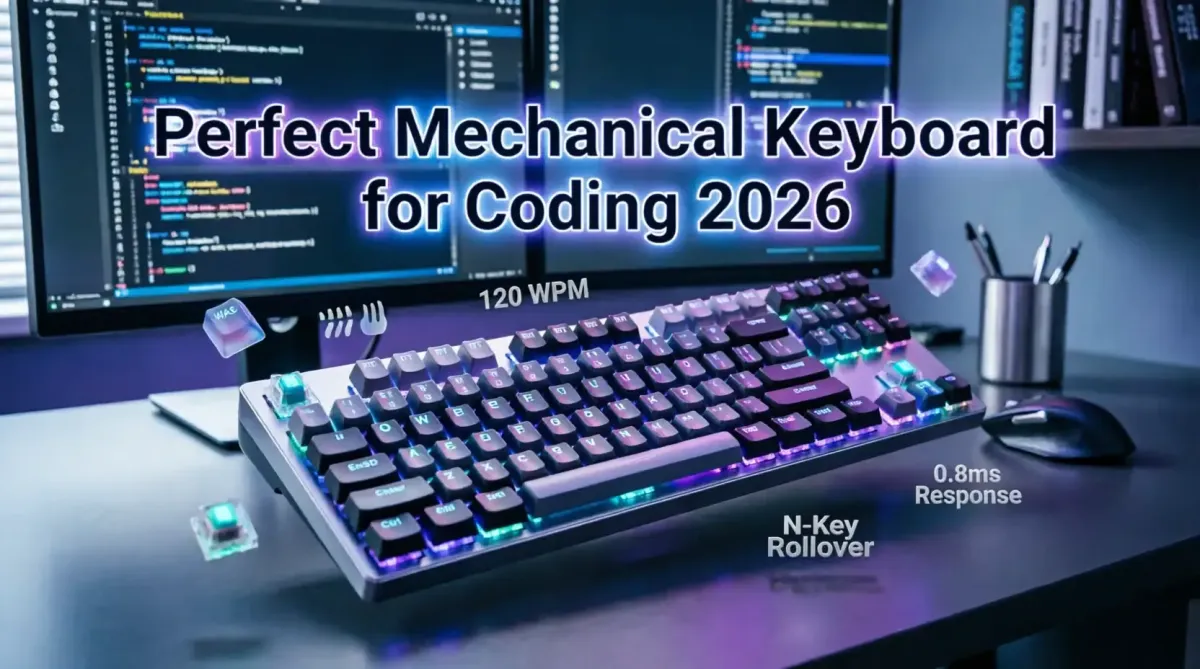
How to Select the Perfect Mechanical Keyboard for Long Coding Sessions
Selecting the right mechanical keyboard for extended coding sessions in 2026 requires careful consideration of switch types, ergonomics, build quality, and features that directly impact developer productivity and comfort. As programmers spend 8-12 hours daily typing code, debugging, and navigating complex development environments, the keyboard becomes a critical tool that affects not only productivity but also long-term physical health. This comprehensive technical guide examines switch technologies, ergonomic designs, connectivity options, and build quality factors that distinguish exceptional programming keyboards from mediocre alternatives. By understanding actuation forces, key travel distances, ergonomic angles, and programmable features, developers can make informed investments that reduce fatigue, prevent repetitive strain injuries, and enhance coding efficiency. Whether you're a software engineer, web developer, data scientist, or DevOps professional, this guide provides the technical knowledge needed to select a mechanical keyboard that supports sustained productivity while protecting your hands, wrists, and overall wellbeing throughout years of intensive use.
Understanding Mechanical Switch Technologies for Programming
Mechanical keyboard switches represent the most critical decision factor for programmers, directly affecting typing comfort, speed, accuracy, and fatigue levels during extended coding sessions. Unlike membrane keyboards that use rubber domes, mechanical switches employ individual spring-loaded mechanisms beneath each keycap, providing consistent tactile feedback and superior durability rated at 50-100 million keystrokes.
Switch Categories and Characteristics:
- Linear Switches: Smooth keystroke without tactile bump or audible click. Examples include Cherry MX Red, Black, and Speed Silver. Ideal for rapid typing and gaming but may cause more typos during coding due to lack of tactile feedback.
- Tactile Switches: Noticeable bump at actuation point without loud click. Cherry MX Brown, Clear, and Zealios provide tactile feedback that confirms key registration without disturbing colleagues. Most popular among programmers for balancing feedback and noise.
- Clicky Switches: Tactile bump combined with audible click sound. Cherry MX Blue, Green, and Box Jade provide satisfying feedback but can disturb coworkers in open offices. Best for private offices or home setups.
Actuation Force Considerations:
Actuation force, measured in grams (g), determines how much pressure is required to register a keystroke. For programmers typing thousands of lines daily:
- Light (45-50g): Cherry MX Red, Speed Silver. Reduce finger fatigue but may cause accidental keypresses
- Medium (55-65g): Cherry MX Brown, Clear. Balance between feedback and comfort for extended sessions
- Heavy (70-80g): Cherry MX Blue, Black. Prevent accidental presses but may cause fatigue during long coding marathons
Key Travel and Actuation Point:
Standard mechanical switches feature 4mm total travel with 2mm actuation point. However, speed switches reduce travel to 3.2-3.5mm with 1.2-1.5mm actuation for faster response. For coding, standard travel provides better accuracy, while speed switches benefit competitive programmers prioritizing raw speed over precision.
For developers optimizing their complete development environment, understanding a comprehensive guide to choosing the best IDE for your project provides complementary insights into how keyboard selection integrates with overall development workflow efficiency.
Ergonomic Design Principles for Developer Health
Ergonomics become paramount when considering that professional developers type 50,000-100,000+ keystrokes daily. Poor keyboard ergonomics contribute to repetitive strain injuries (RSI), carpal tunnel syndrome, and chronic wrist pain that can end coding careers prematurely.
Ergonomic Keyboard Types:
- Split Keyboards: Separate left and right halves angled naturally (15-30 degrees) to align with shoulder width. Examples include Microsoft Sculpt Ergonomic, Kinesis Advantage, and ErgoDox EZ. Require adaptation period but significantly reduce wrist pronation.
- Tented Keyboards: Raised center creates 10-20 degree angle, keeping wrists in neutral position rather than flat pronation. Reduces ulnar deviation and forearm twisting.
- Ortholinear Keyboards: Keys arranged in straight columns rather than staggered rows, matching natural finger movement patterns. Examples include Planck and Preonic. Minimize finger travel distance but require significant relearning.
- Traditional Ergonomic: Slight curve or wave design with adjustable tilt feet. Less dramatic than split designs but easier transition from standard keyboards.
Wrist Rests and Palm Support:
Proper wrist support prevents carpal tunnel compression during extended coding sessions:
- Material: Memory foam or gel provides comfortable support without bottoming out
- Height: Should align with keyboard height to maintain neutral wrist angle
- Width: Full-width rests support both wrists simultaneously
- Detachability: Removable rests allow cleaning and replacement
Adjustability Features:
Customizable keyboard positioning accommodates individual anatomical differences:
- Adjustable Feet: Multiple tilt angles (0-15 degrees) accommodate different desk heights and arm positions
- Height Adjustment: Variable keyboard height aligns with elbow position
- Modular Design: Split keyboards with adjustable tenting and splay angles
For professionals managing digital wellbeing alongside ergonomic concerns, understanding managing digital wellbeing best apps to control screen time provides strategies for maintaining healthy usage patterns that complement ergonomic hardware investments.
Form Factor and Layout Considerations
Keyboard size and layout directly impact desk space, portability, and workflow efficiency. Developers must balance functionality with ergonomics and workspace constraints.
| Form Factor | Key Count | Advantages | Disadvantages | Best For |
|---|---|---|---|---|
| Full-Size (100%) | 104-108 keys | Complete functionality, numpad for data entry | Large footprint, less mouse space | Data analysts, accountants needing numpad |
| Tenkeyless (TKL/80%) | 87-88 keys | Compact, more mouse space, portable | No numpad | Most programmers, general development |
| 75% Layout | 82-84 keys | Arrow keys and function row, compact | Compressed layout takes adjustment | Developers wanting compact with full function |
| 65% Layout | 68 keys | Very compact, arrow keys retained | No function row | Minimalist setups, frequent travelers |
| 60% Layout | 61 keys | Maximum portability, clean aesthetic | No arrow keys or function row | Programmers comfortable with layers |
Recommended Layouts for Programming:
TKL (Tenkeyless): The sweet spot for most developers. Retains function keys (F1-F12) essential for debugging, IDE shortcuts, and browser developer tools while eliminating the numpad that many programmers rarely use. Provides additional mouse space for precision cursor control during code review and debugging.
75% Layout: Emerging as the preferred choice for modern developers. Maintains arrow keys and function row in a compact footprint. Ideal for laptop programmers who want desktop keyboard functionality without excessive desk space requirements.
65% Layout: Suitable for developers who prioritize desk space and portability. Retains arrow keys essential for code navigation while sacrificing the function row. Function keys accessible via Fn layer.
Key Rollover and Anti-Ghosting:
Programmers frequently use complex key combinations (Ctrl+Shift+Alt+Key, multiple simultaneous keys for IDE shortcuts). N-key rollover (NKRO) ensures every keypress registers independently, regardless of how many keys are pressed simultaneously. USB keyboards should support NKRO over USB, not just PS/2.
Build Quality and Durability Factors
Professional developers use keyboards intensively for 5-10+ years, making build quality a critical investment factor. Cheap keyboards flex, rattle, and degrade quickly under heavy use, while quality keyboards maintain consistency and feel throughout their lifespan.
Case Construction:
- Material: Aluminum or high-quality PBT plastic provides rigidity and prevents flex during aggressive typing. Aluminum cases dissipate heat better and feel premium but add weight.
- Mounting Style: Tray mount (plate between case halves) is standard. Gasket mount (plate suspended on gaskets) provides superior typing feel with slight flex and reduced noise but costs more.
- Weight: Heavier keyboards (2-4 lbs) resist sliding during use. Rubber feet or non-slip base essential for stability.
Keycap Quality:
Keycaps significantly affect typing feel, durability, and aesthetics:
- Material: PBT (polybutylene terephthalate) resists shine and wear better than ABS (acrylonitrile butadiene styrene). PBT keycaps maintain texture and legends for years, while ABS develops shiny, smooth surfaces after 6-12 months of heavy use.
- Manufacturing Process: Double-shot injection molding creates legends that never fade. Dye-sublimation provides similar durability. Pad-printed or laser-etched legends wear off quickly.
- Profile: Cherry, OEM, SA, DSA, and XDA profiles affect typing angle and comfort. Cherry and OEM profiles most common. SA profile tall and sculpted. DSA and XDA uniform height across all keys.
- Thickness: 1.5mm PBT keycaps feel premium and durable. Avoid thin, flimsy keycaps that flex and sound hollow.
Stabilizers:
Larger keys (spacebar, shift, enter, backspace) require stabilizers to prevent wobble. Quality stabilizers use screw-in or clip-in designs with proper lubrication. Poor stabilizers rattle, bind, or feel mushy, degrading the typing experience.
For developers concerned about long-term equipment investments, connecting keyboard purchases to how to automate your accounting using modern SaaS tools enables accurate cost tracking, depreciation management, and ROI calculation for business equipment purchases.
Connectivity and Compatibility
Modern keyboards offer various connectivity options, each with trade-offs for development workflows.
Wired vs. Wireless:
| Connection Type | Latency | Battery | Reliability | Best Use Case |
|---|---|---|---|---|
| USB-C Wired | 1ms | N/A | Excellent | Primary development workstation |
| 2.4GHz Wireless | 1-2ms | 20-100 hours | Very Good | Clean desk setups, multi-device |
| Bluetooth | 5-10ms | 100-400 hours | Good | Multi-device switching, portability |
| Tri-Mode | Variable | Variable | Excellent | Maximum flexibility |
Wired Advantages:
- Zero Latency: Critical for competitive programming and fast typists
- Reliability: No interference, disconnection, or battery concerns
- No Charging: Always ready, no downtime
- Passthrough: Some keyboards offer USB passthrough for other devices
Wireless Advantages:
- Clean Setup: Reduced cable clutter improves aesthetics and desk organization
- Multi-Device: Switch between desktop, laptop, and tablet seamlessly
- Portability: Easier to transport without cable management
- Flexibility: Adjust keyboard position without cable constraints
Recommended: Tri-Mode Connectivity
Modern keyboards offering USB-C wired, 2.4GHz wireless, and Bluetooth provide maximum flexibility. Use wired for primary development work, 2.4GHz for low-latency wireless, and Bluetooth for connecting to tablets or secondary devices. Battery life of 40-100 hours (with RGB off) ensures minimal charging interruptions.
Compatibility Considerations:
- Operating System: Ensure keyboard supports your OS (Windows, macOS, Linux). Some keyboards offer OS-specific keycaps and switchable layouts.
- Software: Configuration software should be available for your OS. Some keyboards offer web-based configuration, avoiding software installation.
- Mobile Support: Bluetooth keyboards should support iOS and Android for mobile development work.
Programmability and Customization
Programmable features differentiate basic keyboards from productivity powerhouses, enabling developers to automate repetitive tasks and optimize workflows.
Macro Programming:
- Onboard Memory: Store macros and key mappings directly on keyboard, enabling portability between computers without reconfiguration
- Multi-Key Macros: Record complex key sequences for code snippets, git commands, or IDE shortcuts
- Conditional Macros: Execute different macros based on context or active application
Layer Support:
Layers enable accessing multiple key functions from limited physical keys:
- Function Layer: Access F1-F12, media controls, or special characters via Fn key combinations
- Custom Layers: Create application-specific layers for different IDEs or development environments
- QMK/VIA Support: Open-source firmware enabling deep customization and community keymap sharing
Hot-Swappable Switches:
Hot-swap sockets allow changing switches without soldering, enabling experimentation with different switch types. Ideal for developers who want to test different switches for various keys (lighter switches for frequently used keys, heavier for rarely used keys).
RGB and Lighting:
While aesthetic, RGB lighting provides functional benefits:
- Profile Indicators: Different colors indicate active layers or profiles
- Key Highlighting: Illuminate specific keys for current context (git keys, debugging shortcuts)
- Typing Feedback: Visual feedback for keypresses, caps lock, or num lock
- Customization: Per-key RGB enables personalized layouts and aesthetics
However, RGB increases power consumption (reducing wireless battery life) and adds cost. For office environments, ensure RGB can be disabled or dimmed to avoid distracting colleagues.
For developers building automated workflows, exploring top 5 AI tools to automate your daily repetitive tasks reveals how keyboard macros and programmability complement broader automation strategies for maximizing productivity.
Noise Levels and Office Considerations
Sound levels significantly impact keyboard suitability for different environments, particularly open offices or shared workspaces.
Switch Noise Characteristics:
- Clicky Switches (50-65 dB): Cherry MX Blue, Box Jade. Loud, satisfying click audible across rooms. Inappropriate for offices but excellent for private spaces.
- Tactile Switches (40-50 dB): Cherry MX Brown, Clear. Moderate noise from key bottoming out. Acceptable for most offices with reasonable noise levels.
- Linear Switches (35-45 dB): Cherry MX Red, Black. Quietest option, only sound from key bottoming out. Best for quiet offices or late-night coding sessions.
Noise Reduction Techniques:
- O-Rings: Rubber rings on keycap stems reduce bottoming-out noise but affect tactile feel
- Switch Lubrication: Factory-lubed or manually lubed switches reduce scratchiness and noise
- Foam Dampening: Case foam absorbs sound resonance, creating deeper, quieter sound profile
- Silenced Switches: Cherry MX Silent, Zilent switches designed specifically for quiet operation
Office Etiquette:
When selecting keyboards for shared workspaces:
- Test keyboard noise levels in actual office environment before purchasing
- Consider tactile switches with dampening rather than clicky switches
- Respect colleagues by avoiding loud keyboards in quiet environments
- Use headphones to mask typing noise if using louder switches
Budget Considerations and Value Tiers
Mechanical keyboards range from $50 to $400+, with quality and features scaling accordingly. Understanding value propositions at different price points enables informed investment decisions.
| Price Range | Expected Quality | Features | Best For |
|---|---|---|---|
| $50-80 | Budget | Basic switches, ABS keycaps, limited features | Entry-level, secondary keyboards |
| $80-150 | Mid-Range | Quality switches, PBT keycaps, basic programmability | Most developers, best value |
| $150-250 | Premium | Hot-swap, wireless, advanced features, aluminum case | Professional developers, enthusiasts |
| $250+ | Enthusiast | Custom builds, exotic switches, premium materials | Keyboard enthusiasts, specific ergonomic needs |
Sweet Spot: $100-150
For professional developers, the $100-150 range offers optimal value, providing:
- Quality mechanical switches (Cherry MX or equivalent)
- PBT keycaps with durable legends
- Solid build quality with minimal flex
- Basic programmability and macro support
- USB-C connectivity
- N-key rollover
When to Invest More:
- Ergonomic Needs: Split or ergonomic designs justify $200-300+ for preventing RSI
- Wireless Requirement: Quality wireless adds $50-100 premium
- Hot-Swap: Flexibility to change switches worth $30-50 premium
- Professional Use: 8+ hours daily typing justifies premium investment for comfort and durability
Total Cost of Ownership:
Consider long-term value:
- Durability: $150 keyboard lasting 10 years costs $15/year versus $50 keyboard lasting 2 years at $25/year
- Productivity: Comfortable keyboard reducing fatigue and errors provides immeasurable productivity gains
- Health: Ergonomic keyboard preventing RSI avoids medical costs and lost work time
Top Recommendations for 2026
Based on comprehensive evaluation of switches, ergonomics, build quality, features, and value, here are top recommendations for different use cases:
Best Overall for Programming:
Keychron Q1 Pro ($199)
- Gasket-mounted aluminum case with excellent build quality
- Hot-swappable switches (pre-installed Gateron G Pro switches)
- Tri-mode connectivity (USB-C, 2.4GHz, Bluetooth)
- QMK/VIA support for deep customization
- 75% layout balancing functionality and compactness
- PBT keycaps with shine-resistant legends
Best Ergonomic:
Kinesis Advantage2 ($329)
- Contoured split design with 15-degree tenting
- Ortholinear key layout matching natural finger movement
- Programmable thumb keys for frequently used functions
- Onboard memory for macros and key mappings
- Cherry MX Brown switches (also available in Blue, Red)
- Steep learning curve but superior ergonomics for preventing RSI
Best Budget:
Keychron V1 ($74)
- 75% layout with excellent value
- Hot-swappable switches
- QMK/VIA support
- Solid build quality with gasket mount
- PBT keycaps
- Wired USB-C only (no wireless at this price)
Best Wireless:
Logitech MX Mechanical ($169)
- Premium low-profile design
- Tri-mode connectivity with excellent battery life (15 days RGB on, 10 months off)
- Tactile quiet switches optimized for office use
- Multi-device pairing (up to 3 devices)
- Smart backlighting
- Logitech Flow for seamless multi-device workflows
Best for Typing Feel:
Leopold FC900R ($129)
- Legendary build quality with thick PBT keycaps
- Sound-dampening mat inside case
- Cherry MX switches (multiple options)
- No software required, hardware DIP switches for configuration
- Tenkeyless layout
- Minimalist aesthetic, maximum quality
Best Custom/Enthusiast:
GMMK Pro ($169 barebone)
- Fully customizable with hot-swap PCB
- Aluminum case with rotary encoder knob
- Gasket-mounted plate for superior typing feel
- RGB underglow and per-key lighting
- QMK/VIA support
- 75% layout
- Requires purchasing switches and keycaps separately
Maintenance and Longevity
Proper maintenance extends keyboard lifespan and maintains optimal performance throughout years of intensive use.
Regular Cleaning:
- Weekly: Compressed air to remove dust and debris between keys
- Monthly: Remove keycaps (using keycap puller), clean with mild soap and water, dry completely before reinstalling
- Quarterly: Deep clean switches with compressed air, wipe down case with microfiber cloth and isopropyl alcohol
Switch Maintenance:
- Lubrication: Factory-lubed switches maintain smoothness longer. Re-lube switches every 2-3 years if they become scratchy
- Spring Swap: Replace springs to adjust actuation force if preferences change
- Film Installation: Add switch films to reduce wobble and improve sound
Keycap Care:
- Avoid eating or drinking near keyboard to prevent sticky residue
- Store spare keycaps for replacements if legends wear or keycaps crack
- Rotate keycaps periodically to ensure even wear distribution
Battery Care (Wireless Keyboards):
- Charge before completely depleted to extend battery lifespan
- Disable RGB when not needed to conserve battery
- Store at 50% charge if not using for extended periods
Common Mistakes to Avoid
Awareness of common pitfalls prevents costly mistakes and ensures satisfaction with keyboard investment.
Mistake 1: Prioritizing Aesthetics Over Ergonomics
Reality: While RGB and sleek designs appeal, ergonomic factors prevent long-term injury. Prioritize switch type, layout, and build quality over aesthetics.
Mistake 2: Buying Based on Reviews Alone
Reality: Switch preference is highly personal. What feels great to one programmer may feel wrong to another. Test switches in person at stores or purchase switch testers before committing to full keyboard.
Mistake 3: Ignoring Desk Space Constraints
Reality: Full-size keyboards on small desks force awkward mouse positioning, causing shoulder strain. Measure desk space and consider TKL or 75% layouts for better ergonomics.
Mistake 4: Overlooking Software Compatibility
Reality: Some keyboards require Windows-only software for configuration. Mac and Linux users should verify software availability or choose keyboards with hardware configuration (DIP switches, onboard memory).
Mistake 5: Cheaping Out on Build Quality
Reality: A $50 keyboard flexing and rattling during intense coding sessions causes frustration and fatigue. Invest $100-150 for quality that lasts years rather than replacing cheap keyboards annually.
Mistake 6: Not Considering Future Needs
Reality: Programming needs evolve. Hot-swappable keyboards provide flexibility to change switches as preferences develop. Programmable keyboards adapt to new workflows and IDEs.
Conclusion: Investing in Your Development Career
Selecting the perfect mechanical keyboard for long coding sessions requires balancing switch characteristics, ergonomic design, build quality, features, and budget. For professional developers typing 50,000+ keystrokes daily, the keyboard represents not just a peripheral but a critical tool affecting productivity, comfort, and long-term physical health.
Prioritize tactile or linear switches (Cherry MX Brown, Clear, or Red) that provide feedback without excessive noise or fatigue. Invest in ergonomic designs with proper wrist support and adjustable positioning to prevent repetitive strain injuries. Choose quality construction with PBT keycaps, solid cases, and reliable switches that maintain consistency throughout years of intensive use.
For most developers, the sweet spot exists in the $100-200 range, providing quality mechanical switches, durable construction, and essential features without enthusiast-level pricing. Consider TKL or 75% layouts for balancing functionality with desk space and ergonomics. Wireless connectivity adds convenience but ensure low latency and long battery life if choosing wireless options.
Remember that keyboard preference is highly personal. Test switches before purchasing, read reviews from other programmers, and prioritize comfort and functionality over aesthetics. The right keyboard enhances coding efficiency, reduces fatigue, and protects your hands and wrists throughout decades of development work.
Your keyboard is an extension of your mind during coding sessions. Invest thoughtfully in selecting the perfect mechanical keyboard, maintain it properly, and it will serve as a reliable companion throughout your development career, transforming thousands of hours of coding from a physical burden into a comfortable, efficient, and enjoyable experience.