How to Use Raycast as a Total Replacement for Spotlight and Alfred on Mac
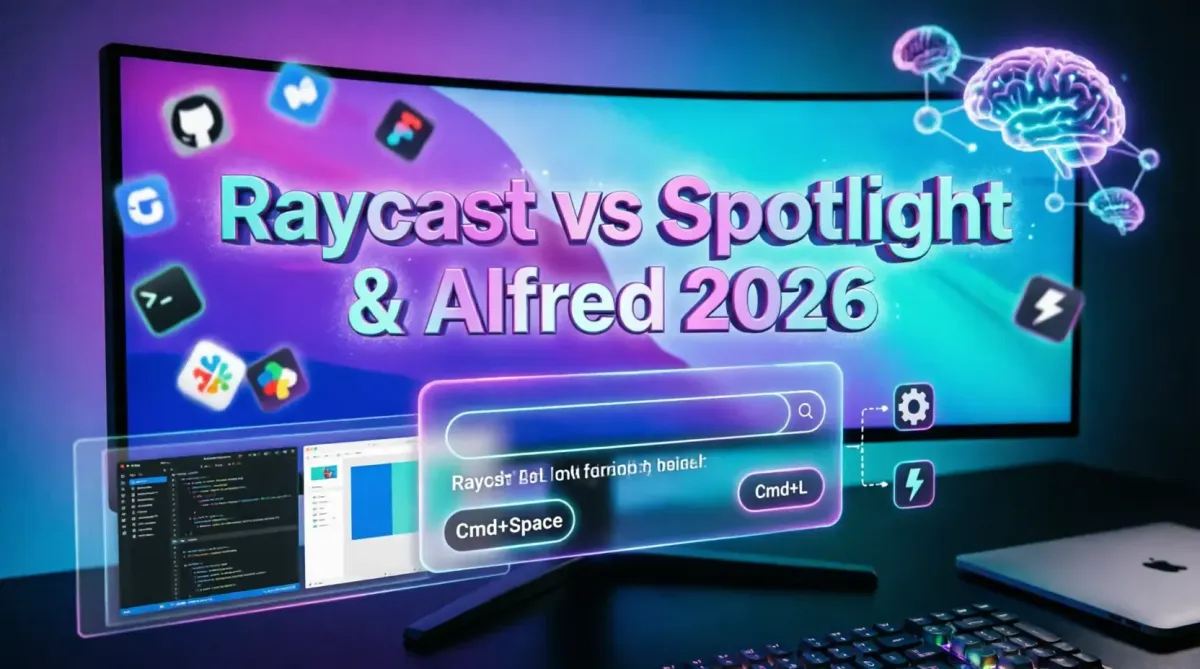
For over a decade, Mac power users relied on a binary choice for productivity launchers: Apple’s native Spotlight for basic searching, or Alfred (with its paid Powerpack) for advanced workflows, clipboard management, and snippets. However, in 2026, the productivity landscape has been fundamentally disrupted by Raycast. Far more than a simple app launcher, Raycast is an AI-native, extensible control center for your macOS that completely obsoletes both Spotlight and Alfred. By combining lightning-fast local search, a massive community-driven extension store, built-in window management, and deeply integrated generative AI, Raycast consolidates dozens of standalone utilities into a single, beautiful command palette. This comprehensive, step-by-step guide will show you how to sever ties with Spotlight and Alfred, migrate your critical workflows, and configure Raycast to become the central nervous system of your Mac. Whether you are a software engineer, a content creator, or a knowledge worker, mastering Raycast will eliminate context-switching and accelerate your daily operations.
The Evolution of Mac Launchers: Spotlight vs. Alfred vs. Raycast
To understand why Raycast has become the undisputed king of Mac productivity, we must evaluate the limitations of its predecessors.
Apple Spotlight: Built into macOS, Spotlight is excellent for indexing local files, emails, and basic math conversions. However, it is notoriously rigid. You cannot extend its functionality, it lacks a clipboard history, and its AI capabilities are limited to basic Siri suggestions. It is a search engine, not a productivity engine.
Alfred: Alfred revolutionized Mac productivity by introducing workflows, custom themes, and clipboard history. However, its most powerful features are locked behind the £34 Powerpack license. Furthermore, Alfred’s architecture, while incredibly stable, was designed in the pre-AI era. Integrating LLMs or modern SaaS APIs requires complex, manual workflow scripting.
Raycast: Raycast was built from the ground up for the modern, AI-driven web. It is blazingly fast, written in Swift, and offers a free tier that includes features Alfred charges for (like window management and extensive clipboard history). Its true superpower, however, is the Extensions API and native AI integration, allowing developers to build rich, interactive UI components directly inside the launcher.
| Feature | Spotlight | Alfred (Free) | Alfred (Powerpack) | Raycast |
|---|---|---|---|---|
| App & File Search | Excellent | Excellent | Excellent | Excellent |
| Clipboard History | No | No | Yes | Yes (Searchable, Images, Code) |
| Snippets / Text Expansion | No | No | Yes | Yes (Dynamic, AI-powered) |
| Window Management | No | No | Yes | Yes (Built-in, Grid-based) |
| Extension Ecosystem | None | Workflows (XML/Python) | Workflows | React/Node API Store |
| Native AI Integration | Basic Siri | No | No | Deep (AI Chat, Custom Commands) |
| Price | Free | Free | ~$34 One-time | Free (Pro tier for AI limits) |
For developers and power users evaluating their core operating environment, understanding these distinctions is crucial. The shift from Alfred to Raycast mirrors the broader industry transition from static, rule-based automation to dynamic, AI-assisted workflows, a trend explored deeply in Mac vs Windows for developers which OS is better in 2026.
Step 1: Dethroning Spotlight and Installing Raycast
The first step to making Raycast your central command hub is removing the OS-level competition.
1. Download and Install:
Download Raycast from the official website or via Homebrew (brew install --cask raycast). Upon first launch, Raycast will offer to guide you through an onboarding tour. Take the time to complete this, as it sets up the essential permissions required for accessibility and file indexing.
2. Disable Spotlight’s Shortcut:
To prevent the two launchers from fighting over the Cmd+Space hotkey:
- Open System Settings > Keyboard > Keyboard Shortcuts > Spotlight.
- Uncheck "Show Spotlight search".
- Open Raycast Settings > Extensions > Hotkeys.
- Ensure Raycast’s global hotkey is set to
Cmd+Space. (Raycast will usually prompt you to disable Spotlight automatically).
3. Configure File Indexing:
Spotlight’s primary advantage is deep macOS file indexing. Raycast replicates this but requires you to tell it what to index. Go to Raycast Settings > Extensions > File Search. Ensure your home directory, Documents, Desktop, and Downloads are checked. Raycast’s search algorithm is incredibly fast and respects your privacy by keeping indexing strictly local.
Step 2: Mastering the Built-in Productivity Suite
Before diving into third-party extensions, you must master Raycast’s native tools. These alone are enough to justify deleting three or four other standalone apps from your Mac.
1. Clipboard History (The Game Changer):
Unlike basic clipboards that only store text, Raycast’s clipboard history captures text, images, links, code snippets, and files.
- Access: Press
Cmd+Shift+V(or your custom hotkey). - Search: You can fuzzy-search your clipboard history by typing keywords. If you copied a JSON block three days ago, just type "json" or a variable name from the code, and Raycast will find it.
- Pinning: Pin frequently used snippets, API keys (use with caution), or email templates to the top of the list.
2. Snippets (Text Expansion):
Raycast replaces tools like TextExpander or Alfred’s snippet expansion.
- Static Snippets: Create shortcuts like
;emailthat expand to your full email address. - Dynamic Snippets: Use JavaScript to create snippets that pull in the current date, format text to uppercase, or even fetch data from an API before inserting it.
- Placeholder Forms: Create snippets that prompt you for variables. For example, a meeting note template that asks for the "Client Name" and "Date" before generating the markdown.
3. Window Management:
Delete Magnet or Rectangle. Raycast has a robust, grid-based window management system built-in.
- Search for "Window Management" in Raycast to access actions like "Left Half", "Right Half", "Maximize", or "Top Left Quarter".
- Assign these actions to custom hotkeys (e.g.,
Ctrl+Option+Left Arrow) in the Raycast settings. - Enable the "Snap to Grid" feature in settings to visually drag and snap windows using your mouse, complete with on-screen overlays.
Mastering these native hotkeys and window controls is the first step toward a frictionless Mac experience. For a broader look at optimizing your OS-level efficiency, reviewing 10 essential macOS shortcuts to double your productivity provides complementary keyboard shortcuts that pair perfectly with Raycast's launcher.
Step 3: Migrating from Alfred Workflows to Raycast Extensions
If you are an Alfred Powerpack user, your biggest concern is likely losing your custom workflows. Raycast does not natively import Alfred XML workflows, but its Extensions API offers a superior, modern alternative.
The Extensions Store:
Raycast’s store features thousands of community-built extensions. Instead of writing a bash script to interact with the GitHub API, you simply install the official GitHub extension. It provides a rich, interactive UI directly inside the Raycast command palette, allowing you to view PRs, assign issues, and merge code without opening a browser.
Essential Extensions to Install Immediately:
- Obsidian: Seamlessly search your vault, create daily notes, and append text to specific files. For a deep dive into this ecosystem, see how to set up a local-first AI knowledge base with Obsidian and Smart Connections.
- GitHub / GitLab: Manage repositories, review PRs, and search issues.
- Docker: Start, stop, and view logs of local containers without opening the Docker Desktop UI.
- Linear / Jira: Update ticket statuses and search backlogs instantly.
- Browser History & Bookmarks: Search Chrome, Arc, or Safari history and bookmarks directly from the launcher.
For users who rely heavily on web-based workflows, integrating your browser with your launcher creates a seamless bridge between local and cloud data. Learn more about this synergy in our guide on how to build a frictionless workflow using Arc Browser and Raycast.
Step 4: Unleashing Raycast AI
The defining feature of Raycast in 2026 is its deep integration with Large Language Models. Raycast AI is not just a chatbot; it is a context-aware assistant that understands your screen, your clipboard, and your workflows.
1. The AI Chat Interface:
Press Cmd+Space, type "AI", and hit enter. You are greeted with a persistent chat window. You can ask it to summarize text, write code, or translate languages. Because Raycast supports multiple models (GPT-4o, Claude 3.5 Sonnet, Gemini), you can switch models on the fly depending on whether you need creative writing or strict logical reasoning.
2. Context-Aware AI Commands:
Raycast AI can interact with other applications.
- Summarize Selection: Highlight text in any app, trigger the Raycast hotkey, and select "Summarize Selection". The AI reads the highlighted text and outputs a summary.
- Fix Spelling & Grammar: Highlight a poorly written email draft, trigger the AI, and select "Fix Spelling and Grammar". Raycast will replace the text in-place.
- Explain Code: Highlight a block of code in your IDE, trigger Raycast, and ask the AI to explain the logic or find bugs.
3. Custom AI Commands:
You can create your own AI prompts and assign them to hotkeys.
- Example: Create a command called "Format as Tweet". Set the prompt to: "Take the following text and rewrite it as an engaging Twitter thread under 280 characters per tweet. Use emojis sparingly." Assign it to
Cmd+Shift+T. Now, whenever you highlight text and press that shortcut, Raycast instantly transforms it.
To get the most out of these custom commands, you must understand how to instruct the model effectively. The principles of the art of prompt engineering how to talk to AI in 2026 apply directly to building high-quality, reliable Raycast AI commands.
Step 5: Script Commands for Ultimate Automation
For tasks that require complex logic, file manipulation, or system-level control, Raycast supports Script Commands. These are lightweight scripts (Bash, Python, Node.js, Ruby) that Raycast executes and displays the output of in the command palette.
How Script Commands Work:
- Create a folder on your Mac (e.g.,
~/Documents/RaycastScripts). - Point Raycast to this folder in Settings > Extensions > Script Commands.
- Create a script file. Raycast uses metadata comments at the top of the file to define the title, icon, and arguments.
Example: A Quick SSH Script
#!/bin/bash

# @raycast.schemaVersion 1
# @raycast.title SSH to Prod Server
# @raycast.mode compact

# Optional parameters:
# @raycast.icon 🖥️
# @raycast.argument1 { "type": "dropdown", "data": { "options": [{"title": "Web-01", "value": "web01"}, {"title": "DB-01", "value": "db01"}] } }

SERVER=$1
ssh deploy@$SERVER.example.com
When you type "SSH" in Raycast, it will present a dropdown menu of your servers. Selecting one instantly opens your terminal and connects you. This eliminates the need to remember IP addresses or navigate through terminal tabs.
By scripting your repetitive terminal tasks into Raycast, you join the ranks of developers who use AI and automation to reclaim hours of their week. For more ideas on what to automate, check out top 5 AI tools to automate your daily repetitive tasks.
Step 6: Optimizing for Developer Workflows
Raycast is incredibly popular among software engineers because it integrates directly into the SDLC (Software Development Life Cycle).
- Kill Process: If a local server is stuck on port 3000, type "Kill Process" in Raycast, select port 3000, and instantly free it up without opening the Activity Monitor or typing
lsofcommands. - Color Picker: Press a hotkey to grab the HEX, RGB, or HSLA code of any pixel on your screen.
- JSON / YAML Formatting: Paste messy, minified JSON into Raycast, select "Format JSON", and get a beautifully indented result copied to your clipboard.
- Regex Tester: Test regular expressions directly inside the launcher without opening a browser tab.
- IDE Integration: Raycast integrates with VS Code and Cursor. You can search for files in your current workspace and open them directly in the editor from the launcher.
When paired with a modern, AI-native code editor, Raycast completes the ultimate developer stack. If you are still evaluating your primary coding environment, our comprehensive guide to choosing the best IDE for your project will help you select the perfect companion for Raycast.
Step 7: Quicklinks and Web Navigation
Raycast’s "Quicklinks" feature replaces the need for bookmark bars or complex browser folders. You can create parameterized URLs that prompt you for input before opening.
Example: Quick Jira Ticket Creation
- Link:
https://yourcompany.atlassian.net/secure/CreateIssue.jspa?pid=123&summary=$1 - Raycast Setup: Create a Quicklink named "New Jira Bug". Set the parameter to prompt for "Bug Title".
- Result: When you trigger "New Jira Bug", Raycast asks for the title. Upon hitting enter, it opens your browser directly to the Jira creation page with the title pre-filled.
You can create Quicklinks for searching internal wikis, generating tracking numbers, or opening specific views in your SaaS tools. This turns Raycast into a universal router for your company's internal infrastructure.
Step 8: Managing Calendars, Reminders, and System Controls
Raycast acts as a unified control panel for macOS and your personal productivity.
- Calendar & Reminders: View your upcoming meetings, create new calendar events, or add Apple Reminders without opening the apps. You can even join Zoom/Google Meet calls directly from the Raycast calendar view.
- System Controls: Toggle Dark Mode, switch Bluetooth on/off, manage Wi-Fi networks, or empty the trash.
- Volume & Brightness: If you are using external monitors that don't support native Mac brightness controls, Raycast extensions can bridge that gap, allowing you to adjust external display brightness via the command palette.
By centralizing these micro-interactions, you maintain your "flow state". Every time you avoid opening a new app to perform a simple task, you save seconds. Over a year, these seconds compound into hours of regained focus, a concept heavily utilized by those mastering time management with AI scheduling assistants.
Advanced Configuration: Themes, UI, and Privacy
Raycast is highly customizable, allowing you to tailor the aesthetic and behavior to your exact preferences.
Theming:
Raycast supports custom themes. You can adjust the background blur, corner radius, font size, and color palette to match your macOS wallpaper or IDE theme. A well-designed theme reduces visual clutter and makes the launcher feel like a native extension of your OS.
Privacy and Telemetry:
For enterprise users or privacy advocates, Raycast offers granular control over data.
- Local Search: File search, clipboard history, and snippets are processed 100% locally. Nothing is sent to the cloud.
- AI Privacy: When using Raycast AI, you can opt-out of data collection. Furthermore, enterprise plans guarantee zero data retention by the LLM providers.
- Extension Permissions: Third-party extensions only have access to the data you explicitly grant them via OAuth or API keys.
Common Migration Pitfalls and How to Solve Them
Transitioning from Alfred or Spotlight is mostly seamless, but there are a few edge cases to be aware of.
Pitfall 1: Alfred's "File Filter" Workflows
The Issue: Alfred allows you to create custom file filters that search specific directories with custom icons.
The Raycast Solution: Use the "File Search" extension's "Quick Access" feature. You can pin specific folders to Raycast, allowing you to search within them instantly using a dedicated hotkey.
Pitfall 2: Spotlight's Natural Language Math
The Issue: Spotlight is great at converting currencies or calculating "50 USD to EUR" on the fly.
The Raycast Solution: Raycast has a built-in "Currency Conversion" and "Math" extension. Ensure they are enabled and pinned to the top of your search results. Raycast's math engine actually supports complex equations, variables, and unit conversions far beyond Spotlight's capabilities.
Pitfall 3: Missing System Preferences
The Issue: Spotlight allows you to search for specific System Settings panes (e.g., typing "Bluetooth" opens the settings).
The Raycast Solution: Raycast indexes System Settings natively. However, if it feels slow, ensure you have granted Raycast "Accessibility" permissions in macOS Security & Privacy settings, as this is required for deep OS integration.
The Future of Raycast: AI Agents and Local LLMs
As we look toward the future of Mac productivity, Raycast is positioning itself as the gateway to local AI agents. With the introduction of Apple Silicon NPUs and the rise of local LLMs (like Llama 4), Raycast is experimenting with allowing users to connect their command palette directly to local, private AI models.
Imagine a workflow where you highlight a sensitive legal contract, trigger a Raycast hotkey, and the text is summarized by a local LLM running entirely on your Mac's Neural Engine—guaranteeing 100% data privacy. This level of integration bridges the gap between system-level utility and advanced AI computation, cementing Raycast's place as an indispensable tool for the next decade of computing.
Conclusion: The Ultimate Mac Command Center
Replacing Spotlight and Alfred with Raycast is not just about changing which app opens when you press Cmd+Space. It is about adopting a new philosophy of Mac interaction. Raycast shifts the paradigm from "opening apps to find tools" to "summoning tools directly to your fingertips."
By consolidating search, clipboard management, window tiling, snippet expansion, and AI assistance into a single, blazing-fast interface, Raycast eliminates the friction that plagues traditional desktop operating systems. The time you save by never having to switch contexts, open a browser to find a bookmark, or navigate a menu bar is profound.
Take the weekend to install Raycast, configure your hotkeys, import your snippets, and explore the Extensions store. Customize the themes, write your first Script Command, and set up your AI prompts. Once you experience the power of a fully optimized, AI-native Mac workflow, you will never look back at the limitations of Spotlight or the legacy architecture of Alfred. Your Mac has always been a powerhouse; Raycast simply gives you the controls to finally unleash it.